 ShiftTable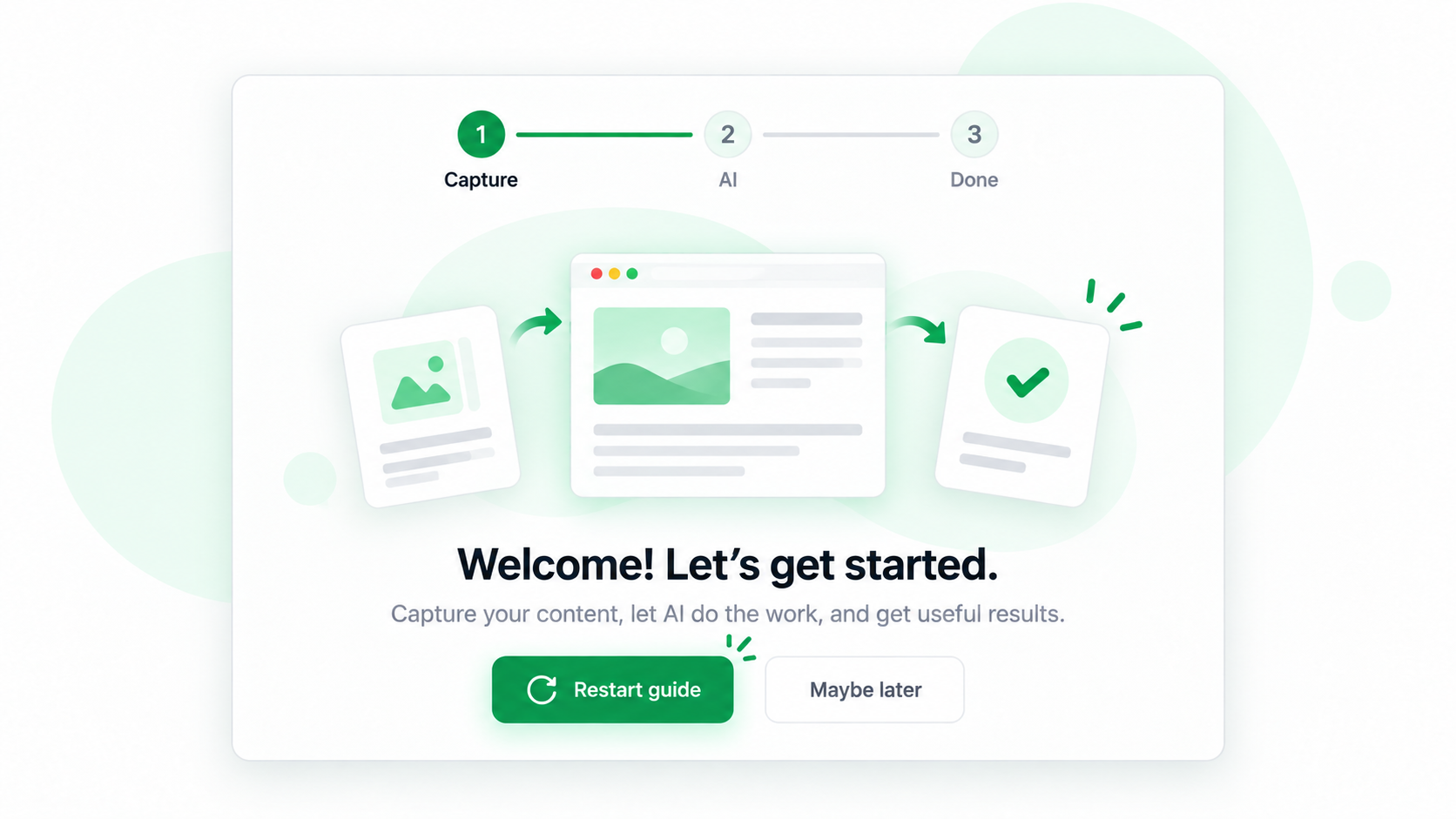
The onboarding guide is a practice run, not a reset of your saved preferences. Restart it when the first walkthrough was skipped, when you want to rehearse the keyboard flow, or when a teammate needs a guided introduction.
Start the walkthrough again
- Open the ShiftTable popup and choose Open guide. If you are already on the completion screen, choose Restart. The guide returns to its practice flow without deleting history or changing configured shortcuts.
- In the capture lesson, point at the sample table or resource and press Shift + F. Wait for the highlight before choosing an action.
- Try the actions shown in the toolbar: open a table in Spreadsheet, copy or download a resource, stash it for later, and send a selected resource to AI when that option is available.
- In the AI lesson, choose a provider from the built-in provider picker. Treat the sample as practice and avoid sending private material during the exercise.
- Finish by reviewing quick settings. Close the guide only after you know which shortcuts and recognition types are enabled.
What restarting changes
Restarting clears the onboarding progress so the lessons can be shown again. It does not erase local history, remove stashed items, or silently replace your shortcut and recognition settings. Those choices remain in settings until you change them.
Common questions
Why is the capture lesson not responding?
Make sure the page or sample resource is active and the pointer is over the intended target. If the extension was updated while the tab was open, refresh the page and start the lesson again.
Why can’t I see the AI step?
The AI lesson includes its own provider picker. Sign-in may be required for actual use, but it is not required to finish the guide.
What should I test after finishing?
Use a harmless real page: identify one resource, try the action you expect to use, and confirm that the output and shortcut match your workflow. The guide teaches the path; it does not validate every website.
Try it on your next table.
Install ShiftTable, refresh your source page, and press Shift + F to begin.
Add to Chrome